
Recently @Simon and I were on a case together were we FINALLY saw a new remote management & monitoring (RMM) tool used. Its usually the famous trio AnyDesk, Atera Agent or SplashTop being used by the most trivial Ransomware or Initial access operators.

These tools have various different logs that can be used e.g. to determine the IP address of the operator that accessed the installation, or the account id associated with the AnyDesk account. Useful information to track adversaries.
These are all well documented on sites like lolrmm.io with a lot of specific artifacts to find on the operating system its used on.
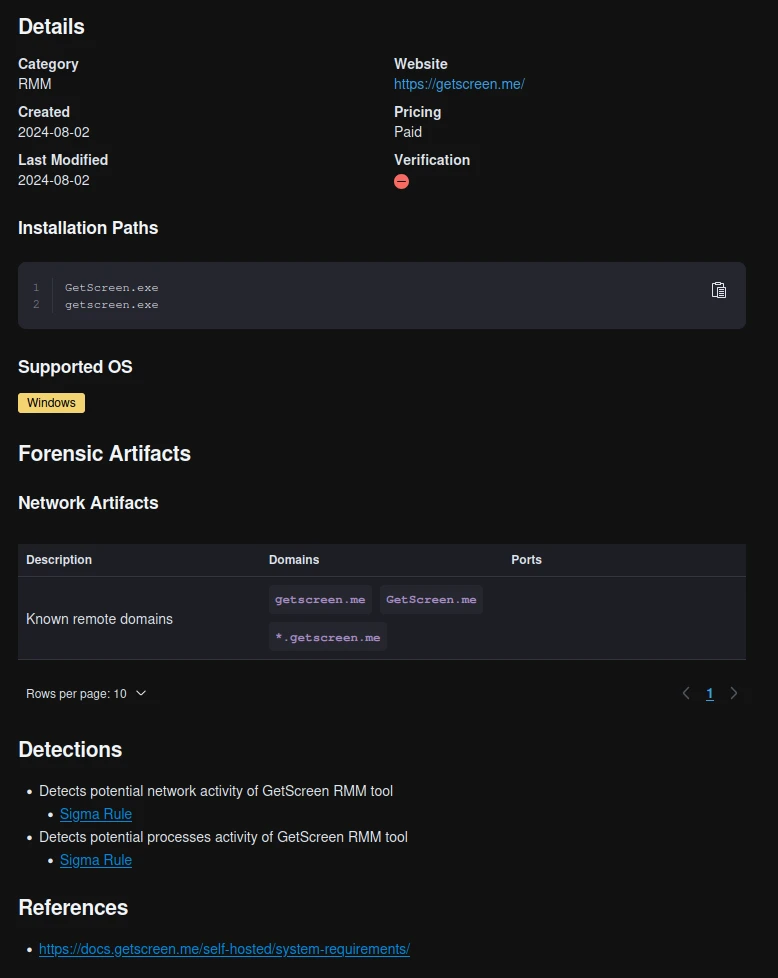
But for GetScreen it was different. There was not much to find besides known remote domains, which forced us to find it ourselves.
Features
As per the tools documentation found on https://getscreen.me/en/ it appears to have a wide range of features including screencontrol, terminal and interactive file explorer among other things.
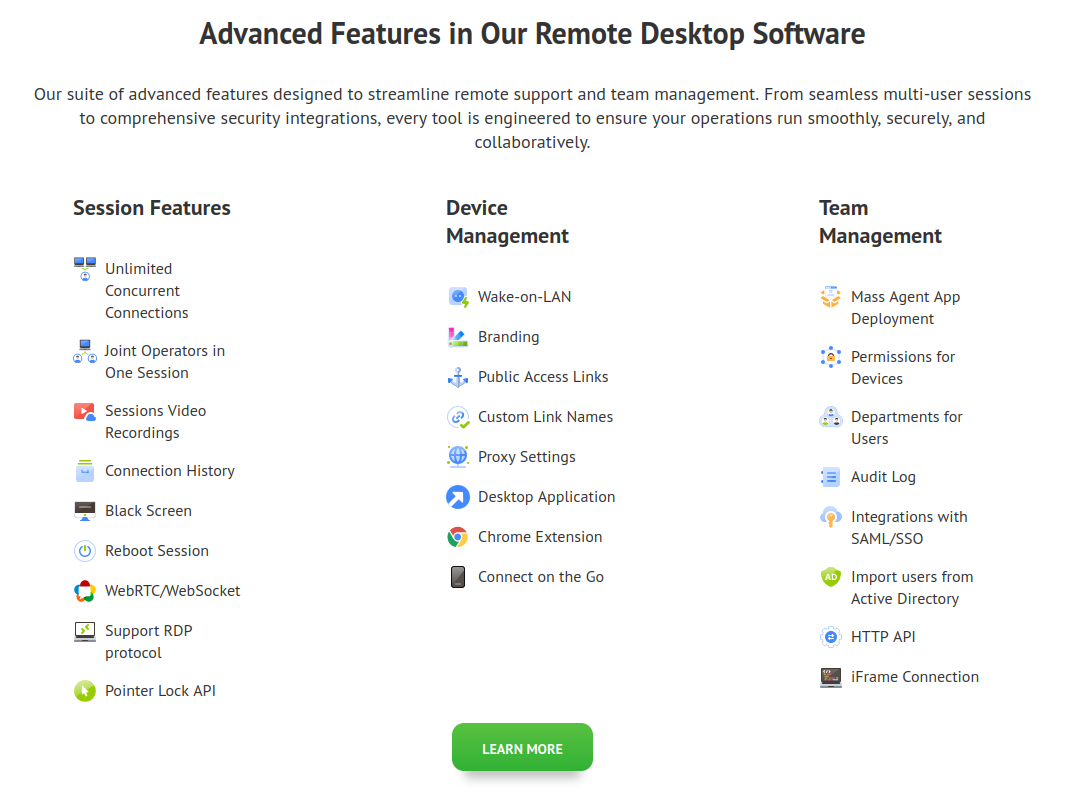
It appears to use WebRTC for communication between the agent and the Getscreen infrastructure. From a forensic point of view the WebRTC traffic does not behave like traditional C2 communication with fixed IPs or easily identifiable domains. With WebRTC connections are dynamically established and encrypted, which makes it harder to rely on network logs alone to identify or trace sessions.
This means you will often see limited value in firewall or proxy logs beyond the initial connection to Getscreen.
Onboarding
Let’s start by taking a look at how this tool can be deployed on a Windows system. You have 2 options:
MSI
PE file
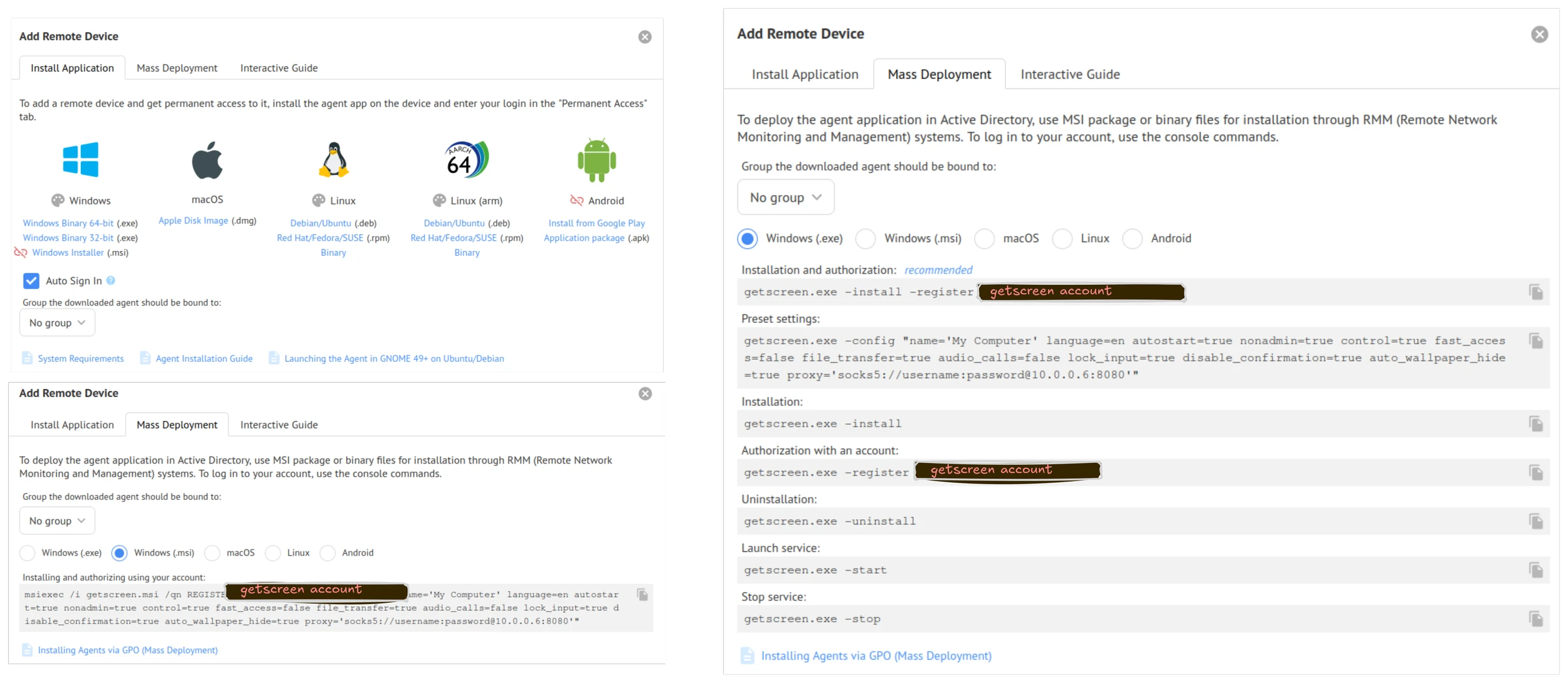
They can both be used together with commandline arguments which is exactly what we saw on the case we investigated. The intended use for this method is to deploy the agent through a deployment tool like Intune, SCCM or GPOs.
getscreen.exe -install -register [email protected]
In the case we investigated, the operator exploited an application, got a shell and wanted to get a more stable session, hence why this method was preferred after he transfered getscreen.exe to disk of the compromised system.
Common execution artifacts wont be covered here. It’s more specific stuff for this application.
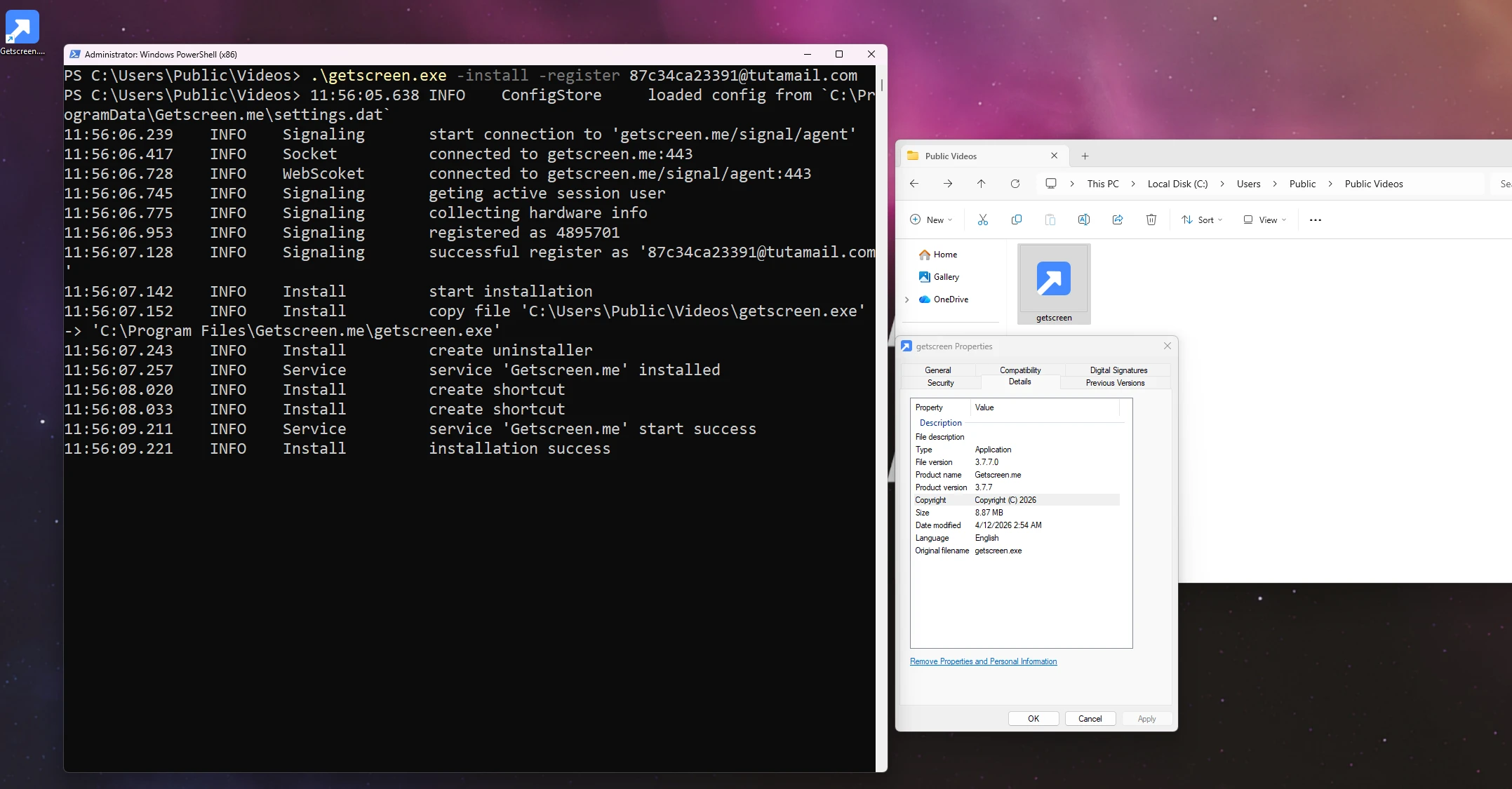
The image above shows the commandline installation method.
Filesystem artifacts
GetScreen creates several files in C:\ProgramData\Getscreen.me and C:\Users\*\Appdata\Local\Getscreen.me.
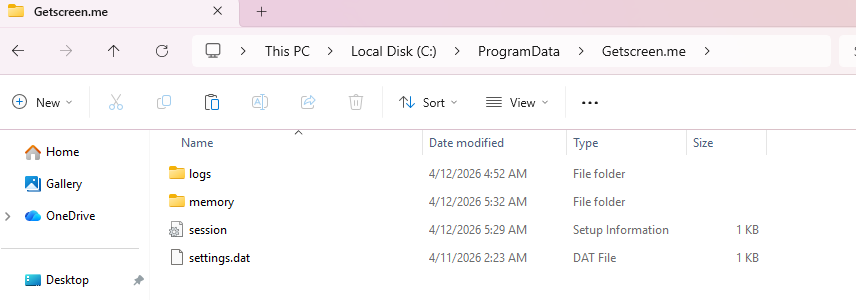
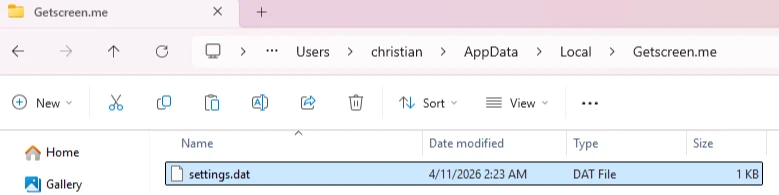
The settings file in AppData appears to be a copy of the agent configuration likely used to store runtime settings for the user context.
Settings.dat
The settings.dat doesn’t have a known file signature in its first 16 bytes, and there is no readable strings and appears to have a high-entropy which could suggest that it is either encrypted, obfuscated or some application specific format that only getscreen.exe is able to parse internally.
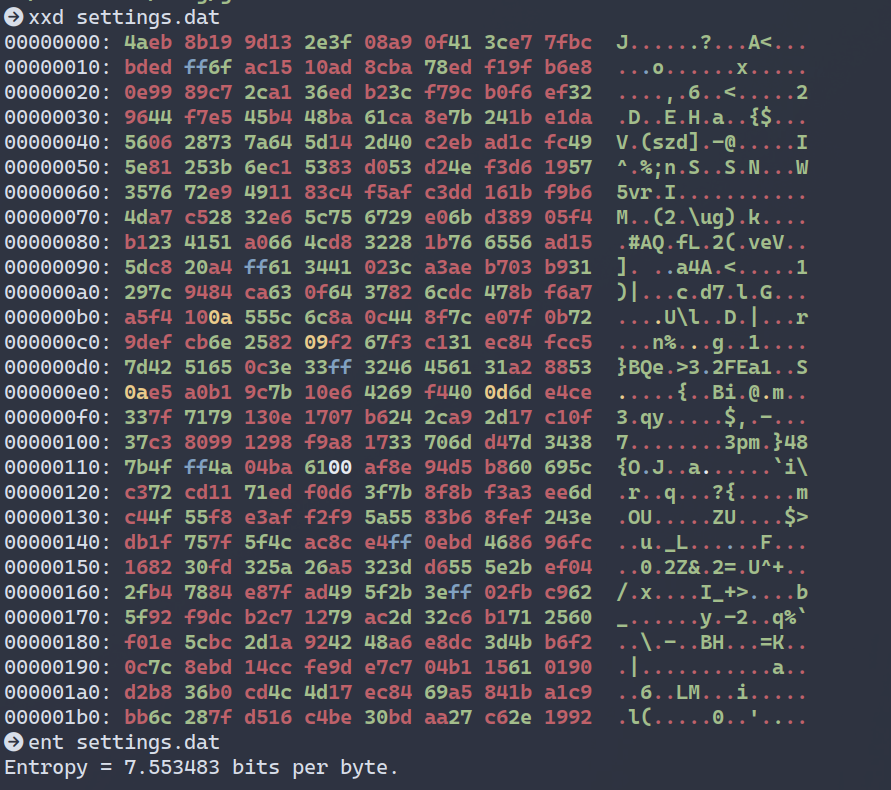
As a result, it does not provide immediate value without further analysis, but if combined with the potential decryption method found in the PE, it could reveal a lot of valuable information.
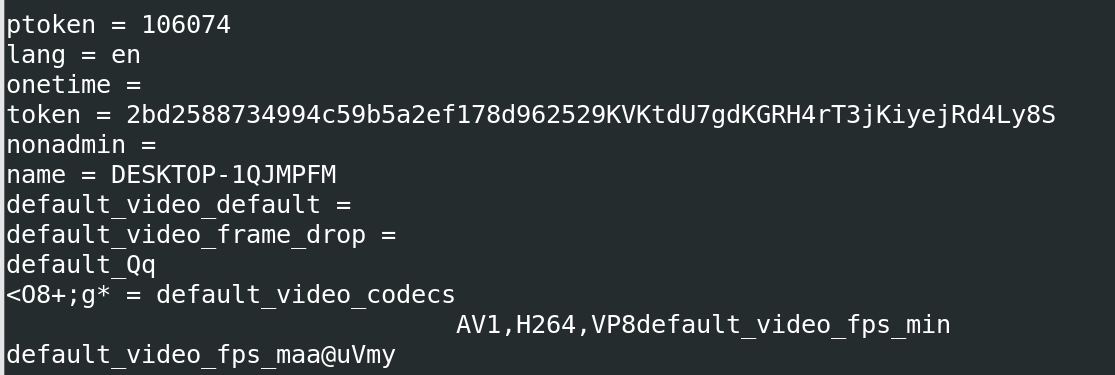
Victor, one of our brilliant instructors spend an evening reversing the binary, and figured out that it containing a statically assigned AES key, which could be used to decrypt the settings.dat file.
Application logs
There is two intersting logs found in C:\ProgramData\Getscreen.me:
<date>.log<data>.gui.log
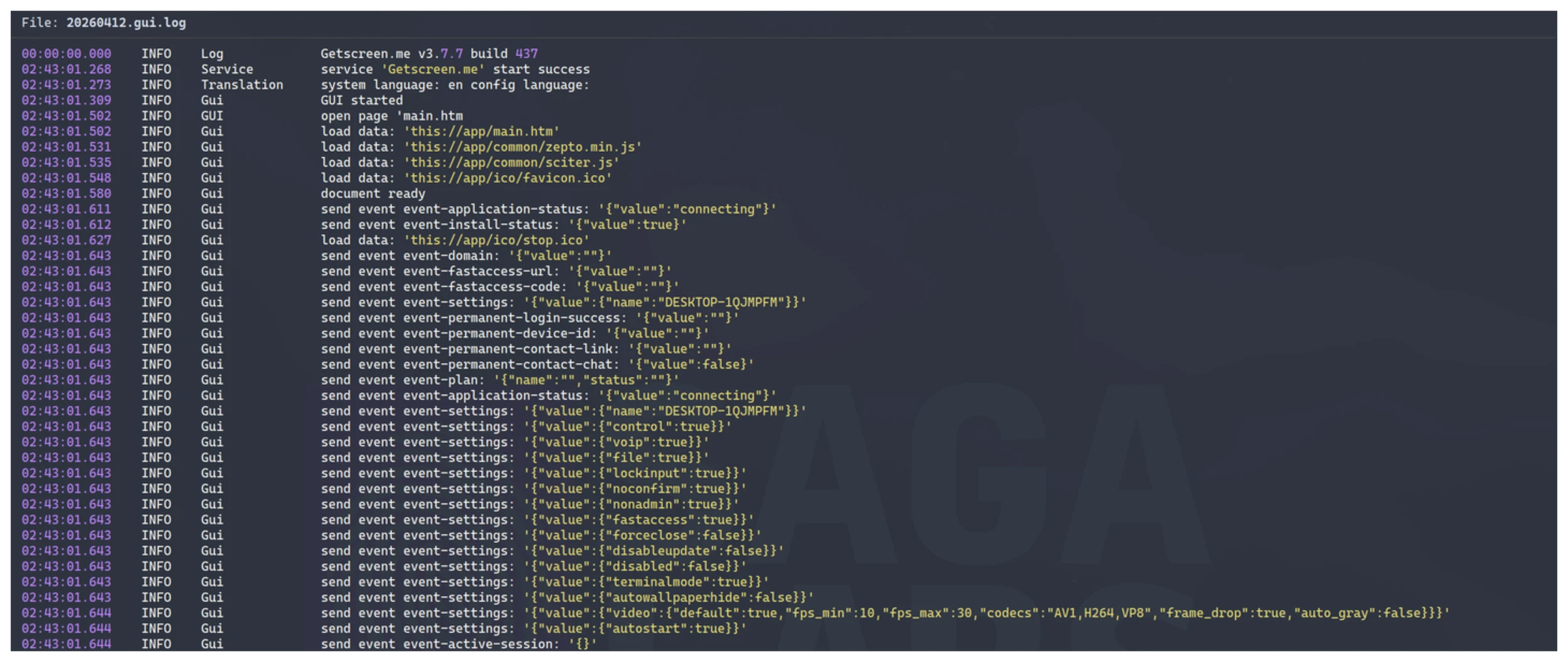
The files contains the timestamp in UTC, but not the date and year. This you have to correlate with the filename, as the application will create a seperate log for each day.
The difference between those two logs is that the gui-log is everything related to what is happening to this host from the operators point of view. So whenever the operator is interacting with the remote host either through the control mode or the interactive file explorer it will be shown in here.
The other log is more specific to the application running on the remote host. So this will show where it is registered to and which config is used.
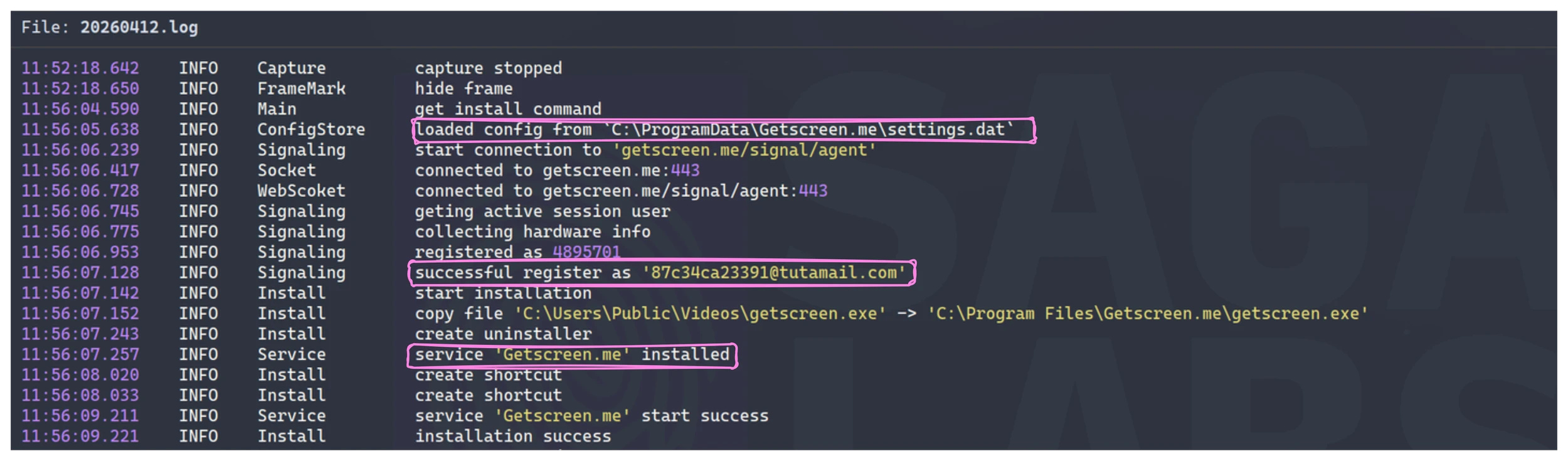
As shown on the image above the e-mail address of the GetScreen account is present, leaving room for OPSEC mistakes. It also appears that.
Service
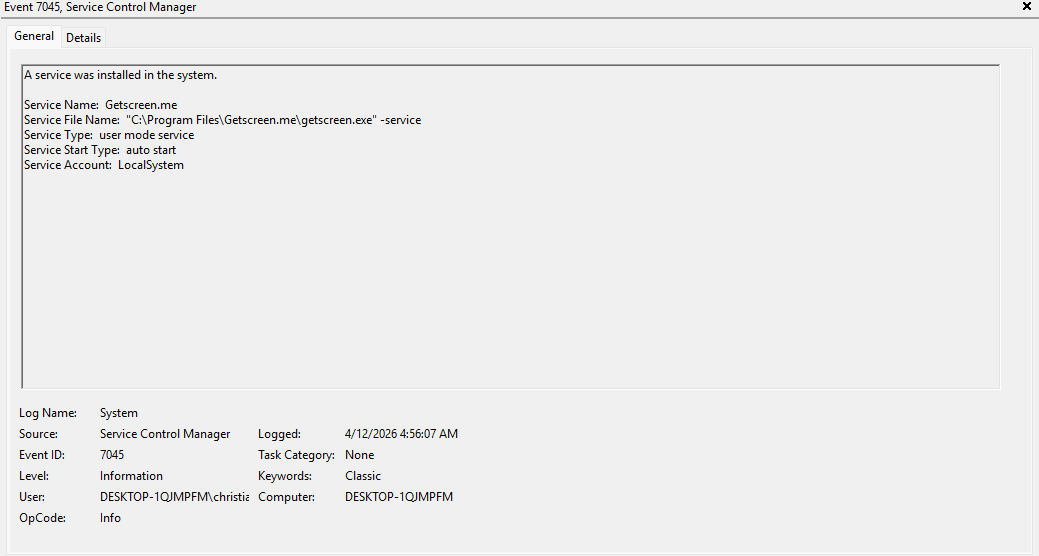
As part of the installation the tool installs itself as a service for persistent access across reboots. The service name is quite easy to identify as its named Getscreen.me.
Pipes
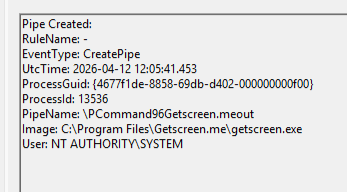
The installation of the software immediately created a new named pipe PCommand*GetScreen.meout
If we take a look at the CreateFile operations for GetScreen we notice that in the C:\ProgramData\Getscreen\memory suggests the use of file-backed or memory-mapped buffers for handling larger data transfers such as screen capture streams.
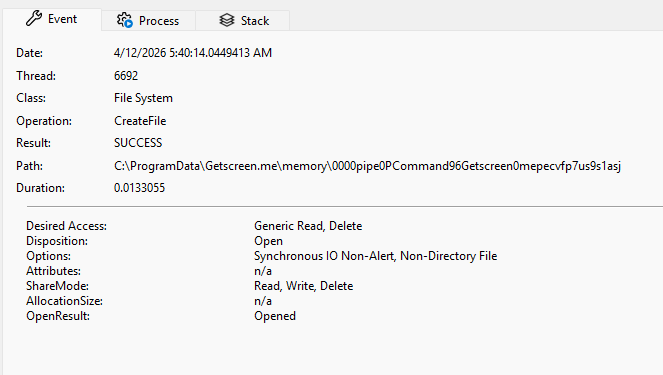
This could indicate that GetScreen splits its communication into two parts where one channel (the named pipe) for control and commands, and another (memory/file) for actual data transfer.
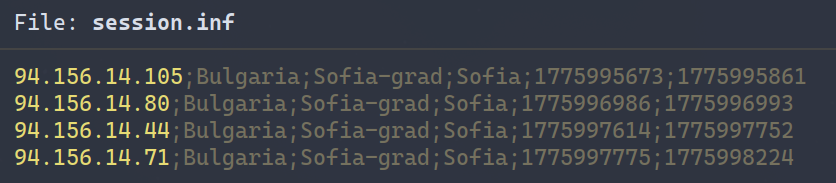
session.inf
Contains a list of previous sessions with source ip, country, region, citry and start/end time of session in epoch time.
GUI / Control mode
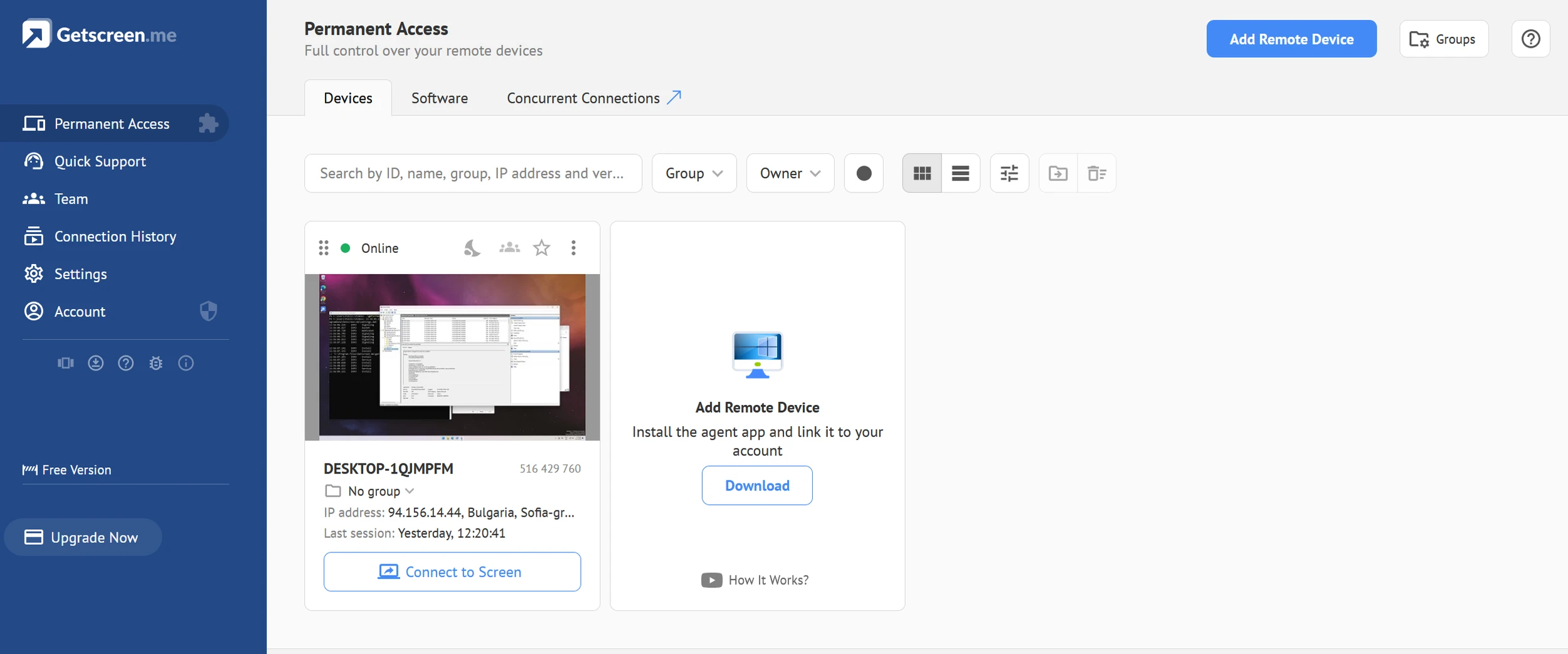
When connecting using the graphical session method in GetScreen, the mode will appear in the *.gui.log as method:control. It gives the operator a session similar to tools like SplashTop, Level.io and similar. As shown below, i’m controlling DESKTOP-1QJMPFM through the browser.
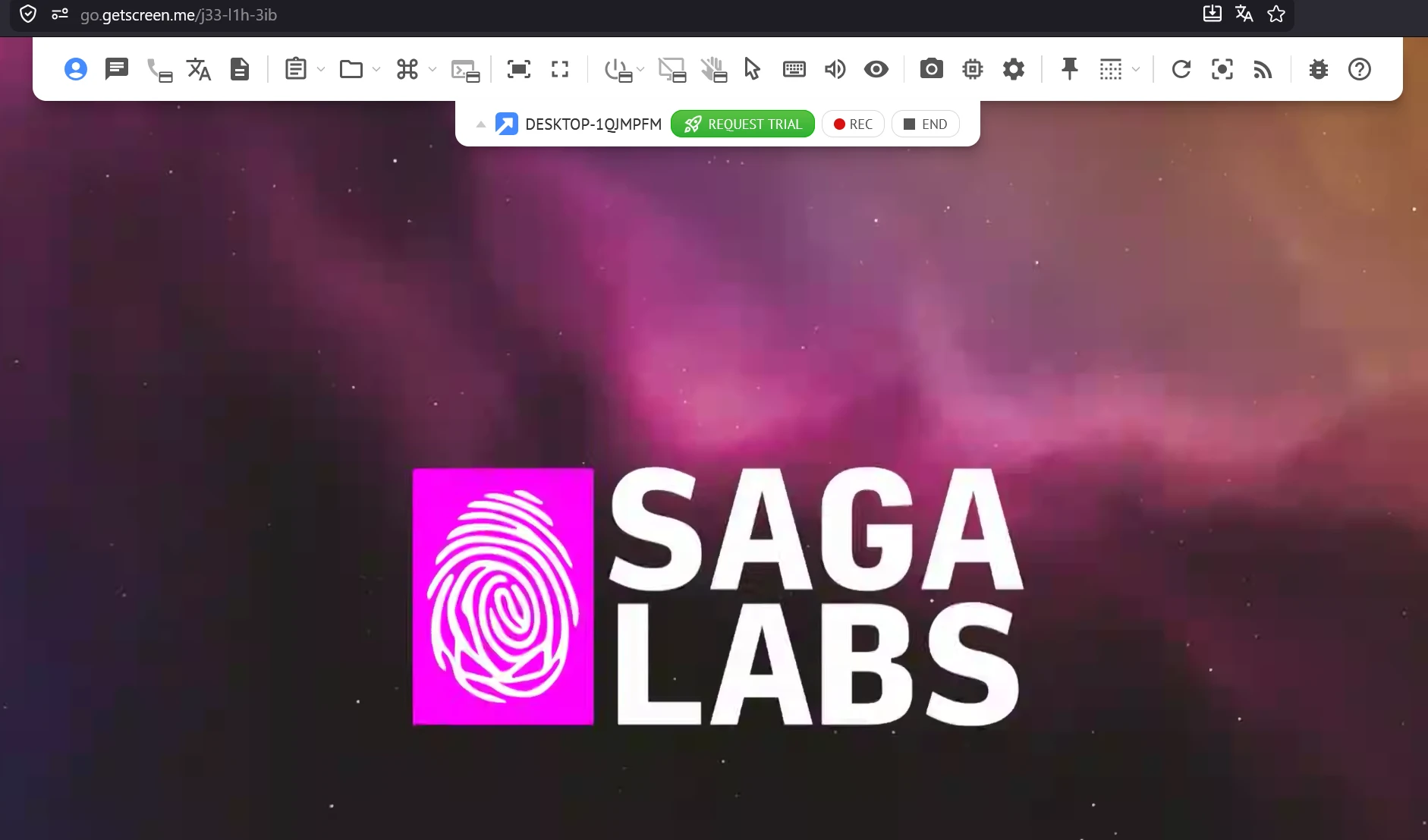
There will be a lot of information related to the display information that is used by the operator. Not something of much interest for us, but maybe you can use it for something..?
Interactive File Explorer / File Mode
GetScreen has a basic interactive file explorer that allows for upload/download of files, creating folders and deleting files from the remote system.
All these activities are logged in the *.gui.log-file with a lot of interesting information.

There is a event called event-active-session which displays information about the GetScreen subscription plan, which browser is used by the operator, their IP Address, a country look up with region, account name and which mode is used. When the Interactive File Explorer is used, the mode will be mode:file
One thing I noticed was that deleting a file through the File Explorer in GetScreen didn’t show up in the log. That also was the case for creating new folders. That is quite odd, and something you should be aware of in your investigation.
Registry activity
Of course when the GetScreen program is deployed subsequently launched the registry keys that forensic analyst usually use to track executables are updated (MuiCache, AppCompat etc.)
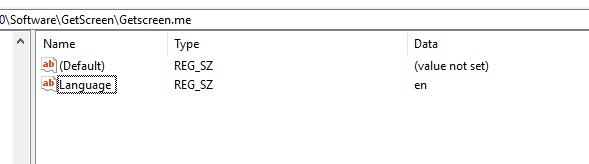
However, the GetScreen application was also found to set a series of registry keys specific to the application.
The identified keys were:
HKU\{SID}\Software\GetScreenHKU\{SID}\Software\GetScreen\Getscreen.me
The keys hold program setting such as language settings
Registry activity
Of course when the GetScreen program is deployed subsequently launched the registry keys that forensic analyst usually use to track executables are updated (MuiCache, AppCompat etc.)
However, the GetScreen application was also found to set a series of registry keys specific to the application.
The identified keys were:
HKU\{SID}\Software\GetScreenHKU\{SID}\Software\GetScreen\Getscreen.me
The keys hold program setting such as language settings

Similar to the rule for TCP traffic, a rule is created for UDP traffic by specifying the protocol token 17.

Elevation mechanism
Digging deeper into the runtime operations of the GetScreen application, it was found that the application implements an elevation mechanisms.
A simplified overview of the elevation mechanisms execution are shown in the picture below.

This executable you can track in logged/recorded process executions, as well as execution artifacts such as prefetch files.
While the prefix of the executable (in this execution fyxiivriwhkkpydvuvemvbeqwxttgqkh) varies. A quick UPX unpack, and a look at the getscreen.exe binary verified that the suffix of the elevation binarys name (-elevate.exe), is hardcoded.

Predictable executable names, gives us as analyst, a great starting point regardless if we are doing incident investigations, detection engineering or genereally threat hunting.
Wrap up
GetScreen isn’t really any different from any other tools. We just thought it would be nice to contribute with our findings, as there was not much out there already.
If you are a security engineer, go ahead and take a look at https://lolrmm.io/. If you know your environment, you should not see new RMM tools popping up.
These findings we obviously contributed to the project.
We hope you liked it, and encourage you to explore yourself.