Introduction
Credits: Victor Buch and Frederik Kudahl for their help with initial research and input.
When doing incident investigations on an DFIR team we are often tasked with identifying signs of data exfiltration from sensitive MSSQL databases. On these cases we have seen threat actors (TAs) utilizing the built-in SQL Server Management Studio (SSMS) for enumerating and staging sensitive information with the purpose of exfiltration.
In many ransomware cases today, it’s not just about encrypting data, but also about stealing it. On a few occasions we have seen adversaries use SSMS after gaining access to a SQL database to dump sensitive tables straight from the database. Despite this, SSMS activity is something we don’t always examine closely during forensic investigations, and there is not much research made on this topic.
SQL Server Management Studio is likely a familiar tool for Microsoft database administrators, and increasingly so for ransomware operators. In essence SSMS is an administrative client made to manage Microsoft SQL Servers by connecting to the database itself.
In this post, I’ll look at how SSMS is used in data exfiltration during ransomware attacks and what artifacts it leaves behind. You might wonder why threat actors would bother using SSMS at all? It’s easy to use, powerful, and already installed on a lot of admin boxes. It gives the threat actor access to browse, export, and back up MSSQL data without needing custom tooling depending on the access obtained.
There are some great blog posts out there covering other forensic artifacts in MSSQL databases, I have linked to a few of them in the references section.
Lab environment
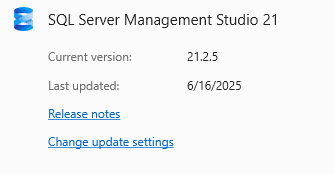
Obviously, I can't show you live case data, so I have spun up a lab environment for this purpose instead. The lab is based on a Windows Server 2022 running Version 21H2 Build 20348 with the MSSQL Server version being 2022 Developer edition. We will be using SSMS version 21.2.5.

Note that no extra audit policies have been set up in the lab environment, this is a default install, straight out of the box.
Some artifacts only show up on the SQL Server itself, others come from the SSMS client. In most of the cases we have worked, the TAs just used SSMS directly on the SQL server.
Technically SSMS is meant to be a remote tool, but if it’s already installed on the box, so why wouldn’t you use it?
For this lab, everything’s running on the same host to mirror that setup.
SSMS Client Artifacts
Temporary files
This particular artifact is actually what kicked off the whole idea for this blog post. Frederik and I stumbled across the artifact during a case, and we were both surprised by how useful it was, and how little had been written about it. It ended up being a key piece in that investigation.
The following artifact tells the investigators a story about what the threat actor have been looking at in SSMS. It is especially useful if you do not have any transaction logging enabled on your SQL server.
There’s a feature in SSMS called Select Top 1000 Rows that lets users quickly preview table contents. This feature is of course great for admins, and apparently just as handy for adversaries. It gives them a fast way to dig through large datasets and cherry-pick the juicy stuff that can be used for extortion.
Internally, this feature works by opening a new query window and automatically generating the corresponding SQL query in the background.
Artifact Location:
%USERPROFILE%\AppData\Local\Temp
So, the artifact will not show you information about the content in the tables of the database, besides which columns appear in there. It also reveals the name of the database and table. It essentially displays the query that SSMS does in the backend for this SELECT TOP 1000 ROWS feature.
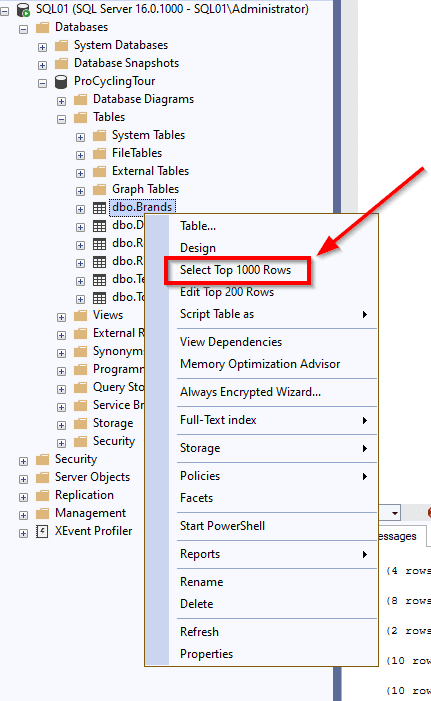
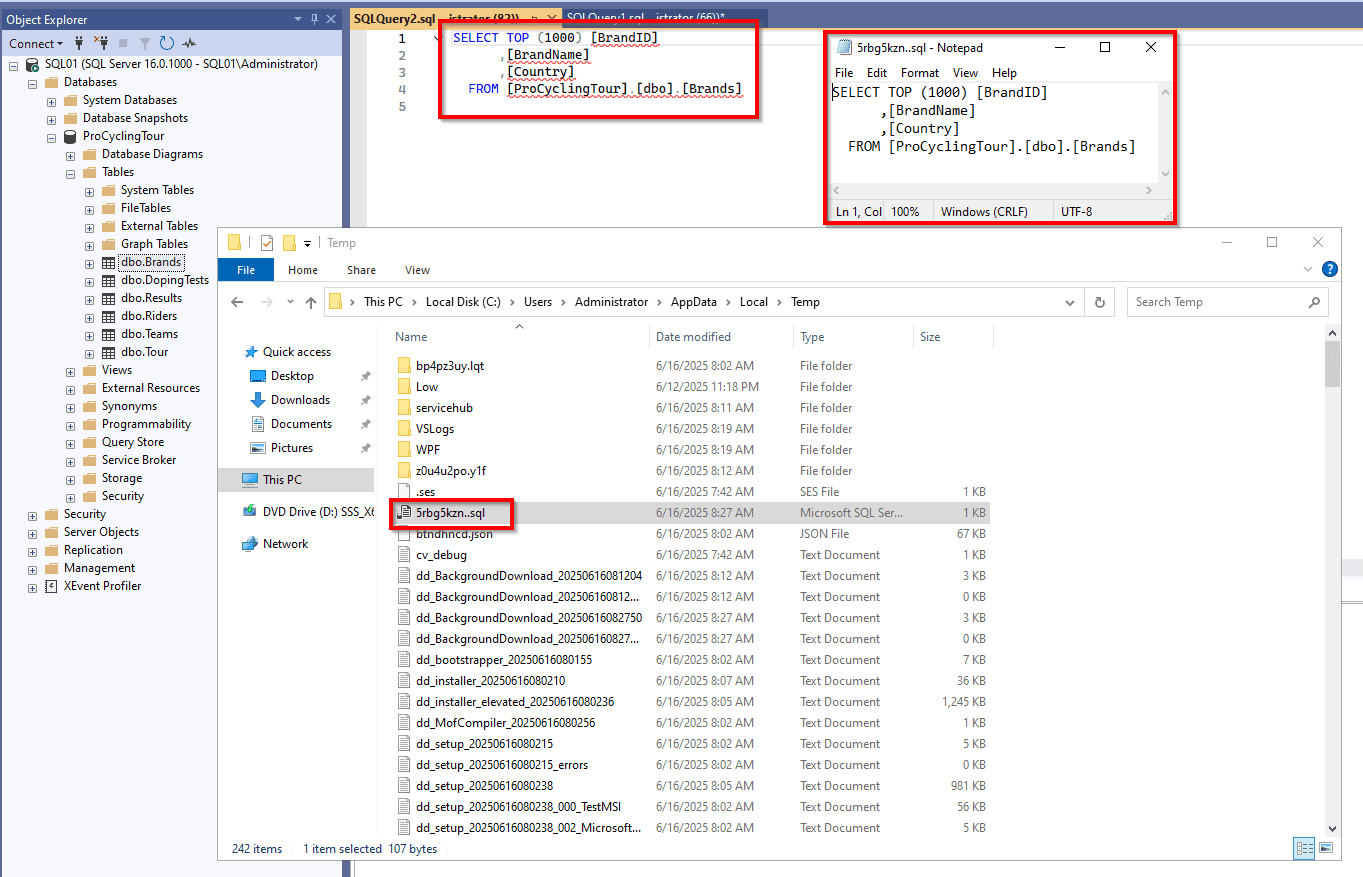
When you use this feature, SSMS opens a query window and it will create a temporary file with the file extension ..sql, with a random prefix e.g. yphrleub..sql. (yea, double extension dots, I don’t know why...?)
The temporary files are found in %USERPROFILE%\AppData\Local\Temp, and is not deleted as long as the query tab remains open in the SSMS Client.
On multiple occasions, we have been fortunate enough to observe threat actors disconnecting their RDP session or closed SSMS without closing the tabs, in turn leaving all the temporary files present on disk and freely available for us.
To better understand how this functionality works internally, we decompiled the relevant SSMS assemblies using ILSpy. Since SSMS is largely written in .NET, this allowed us to easily inspect the underlying code responsible for creating the temporary files associated with the Select Top 1000 Rows feature.
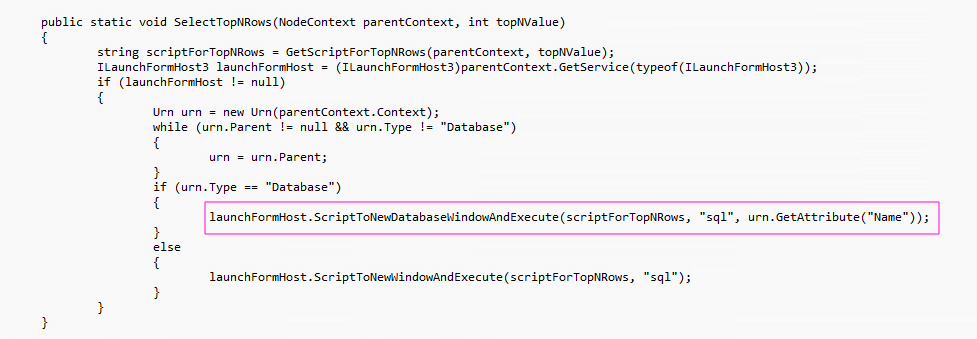
When a user clicks the Select Top 1000 Rows button in the application, SSMS executes the SelectTopNRows method.
The important part is the call to: ScriptToNewDatabaseWindowAndExecute(), as this instructs SSMS to open a new query window and populate it with generated SQL statement.
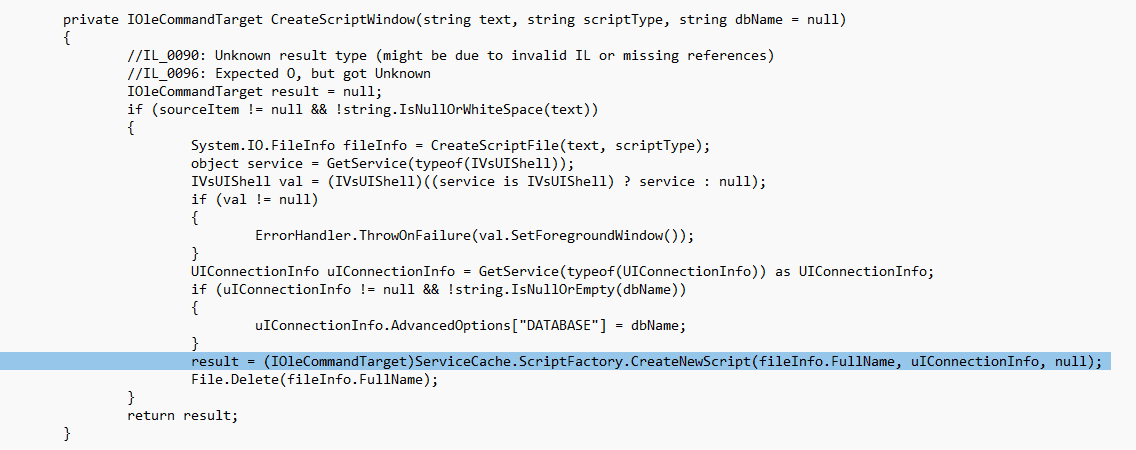
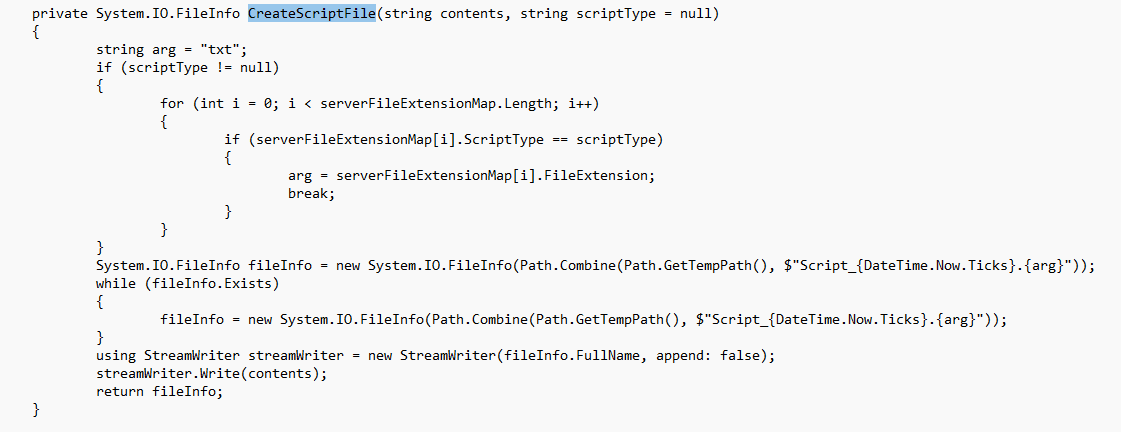
What happens after is during the query window initialization, SSMS creates an initial script file in the users %LOCALAPPDATA%\Temp directory. The file path is resolved using the .NET Path.GetTempPath() method, which returns the operating system’s temporary directory for the current user.
The file is named using the DateTime.Now.Ticks value and written directly to disk as a .sql file containing the generated query (stored in contents-variable), e.g Script_<DateTime.Now.Ticks>.txt.
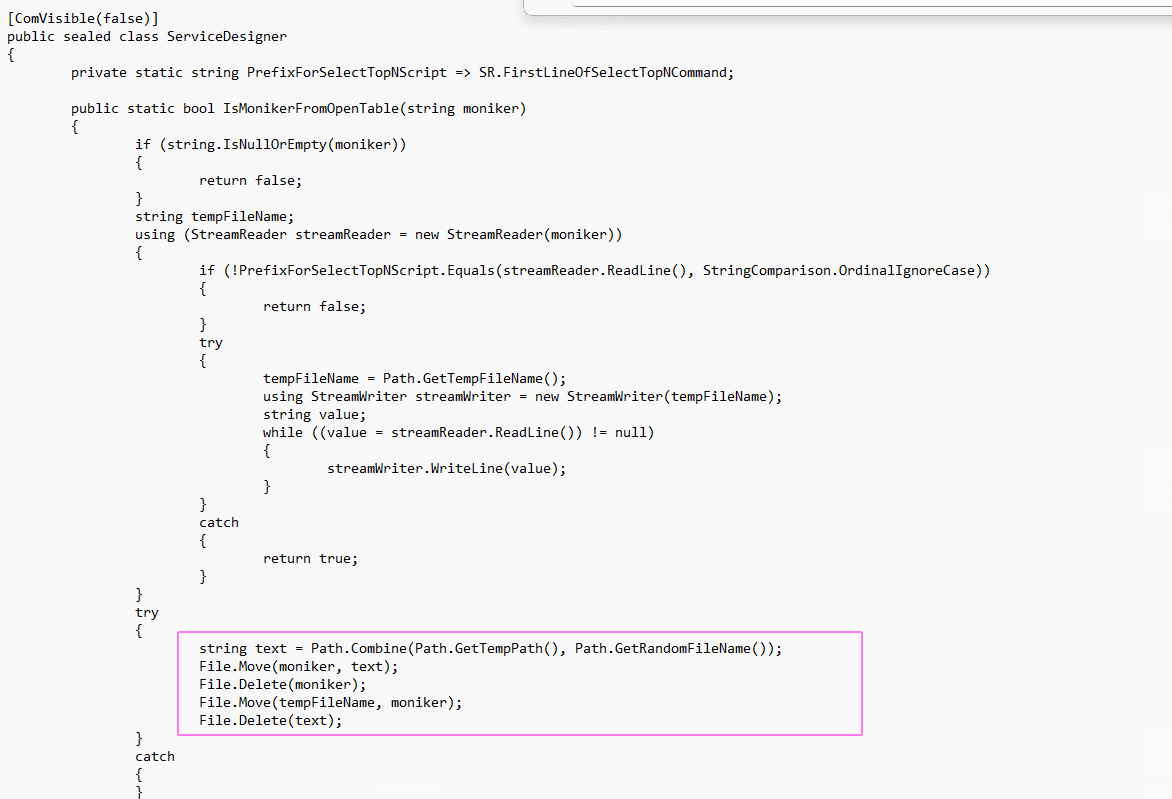
After this SSMS transforms the initial script file into the file we saw on disk.
A random filename is generated using Path.GetRandomFileName(), and a temporary .tmp file is created using Path.GetTempFileName(). SSMS then performs a series of File.Move and File.Delete operations to replace the original file contents while keeping the same file path.
An example of how a temporary file could look like is shown on the image below.
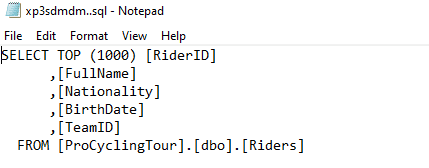
I could not identify an explicit reason for the double-dot (..sql) filename pattern. Based on the observed behavior, this appears to be an unintended side effect of the temporary file renaming logic.
What happens if the query window is closed?
If the TA actively closes their query window inside SSMS, the files will be deleted immediately. However, the files have a small size (~100-144 bytes) and may persist in unallocated space, or if you are lucky, you might be able to carve it straight from the $MFT entry, seeing as the files meet the criteria for being resident.
During testing I kept SSMS open while restarting the server, and after reboot the temporary files were still found on disk in the same location.
An interesting thing was I noticed that when SSMS was opened after reboot, the previous query window was not shown. This means that a threat actor could inadvertently leave artifacts for us, if they force or crash a machine.
So we don’t know what the exact use of the temporary files is, but maybe some of you know?
Velociraptor artifact
As we rely heavily on Velociraptor on our team, we built an custom artifact for Velociraptor. The artifact will display the temporary ..sql files in the Notebook, and also includes the optional parameter to upload the artifacts to your Velociraptor server. Our Velociraptor artifact can be found below.
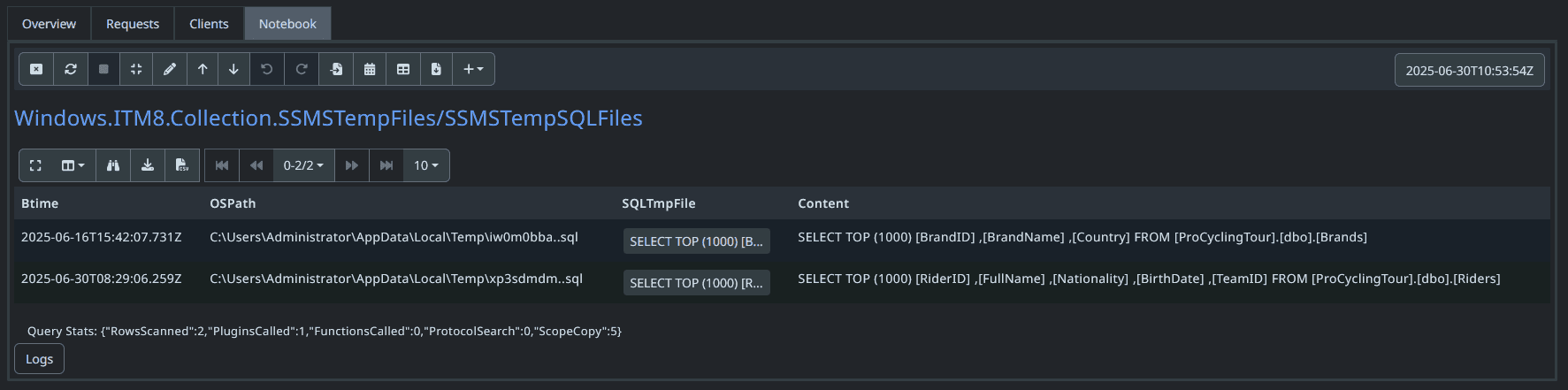
With our Velociraptor artifact will show the full path of the file, the contents of the temp file and the Btime of the file.
Wrap up
This artifact is very underrated and largely undocumented but can provide valuable context to your investigation, as it shows what the adversary was looking at.
Taking the investigation a step further, the timestamps of the file creation can be great pivot points for uncovering other exfiltration activities performed by the threat actor.
As mentioned previously, we used this activity to give the customer an indication of what kind of database activity the adversary was querying.